

Managing the attendance of employees or staff may not necessarily need a complicated and costly system. In case you need a simple, flexible, and cheap attendance tracking system, it is a clever idea to develop an attendance sheet with specifications in Google Sheets.
A great number of small businesses are still looking for a monthly attendance sheet Excel free download, yet Google Sheets provides the same advantages with an added cloud-access and real-time teamwork.
This guide will take you through the process step by step, of how to create the manual attendance sheet, how to calculate attendance automatically and how to use conditional formatting so that it looks more visible, without even having to pay to use any paid attendance management software.
Why Use Google Sheets for Attendance Management?
Google Sheets is an efficient and easily available platform to monitor the attendance of employees. Google sheets do not require installation or set up since most users already have a Google mail account.
Key Benefits of Using Google Sheets for Attendance
- Free and cloud-based access
- Simple customization of all business sizes.
- Live cooperation and communication.
- None of the technical knowledge demanded.
- Used as an attendance sheet template that is free.
It is why Google Sheets is perfect in the business of small size, office, school, startup, and personal staff attendance tracking.
Step 1: Create a New Attendance Sheet in Google Sheets
To begin with, open the Google Drive and create a new sheet in Google.
Once the sheet is created:
- Dates (1 to 30 or 31, depending on the month) are typed in the top row.
- Drag numbers to auto fill date columns.
- Enlarge column width to increase readability.
- Continue columns past Z when necessary.
Another thing that you can do is to align dates according to weekdays so that it would make a layout of attendance sheets of an employee in a professional manner.
Step 2: Add Staff or Employee Details
Columns should be added on the left side of the sheet under:
- Staff ID
- Staff Name
At the top of the sheet:
- Enter the month and year (e.g. January 2026).
- Merge cells for the heading
- Text: Vertical and horizontal center.
- Bold formatting and borders.
The layout can be used as a monthly attendance sheet like the Excel but with a lot of flexibility.
Step 3: Define Attendance Status Codes
To make it easier to work with attendance codes, short attendance codes are used:
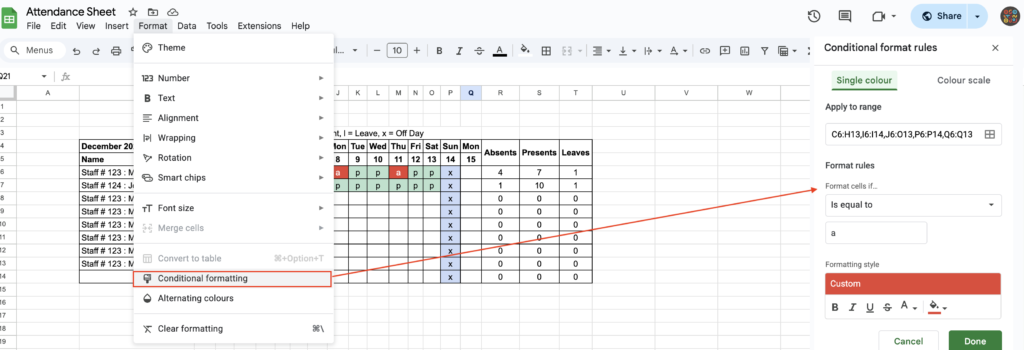
- P = Present
- A = Absent
- L = Leave
- X = Off Day / Holiday
Include a little reputation to indicate these codes. This minimizes the mistakes and enhances efficiency in tracking staff attendance.
Step 4: Calculate Attendance Automatically Using COUNTIF
Google sheets formulas can be used to calculate attendance automatically.
You can use the COUNTIF formula to calculate:
- Total presents
- Total absences
- Total leaves
Example:
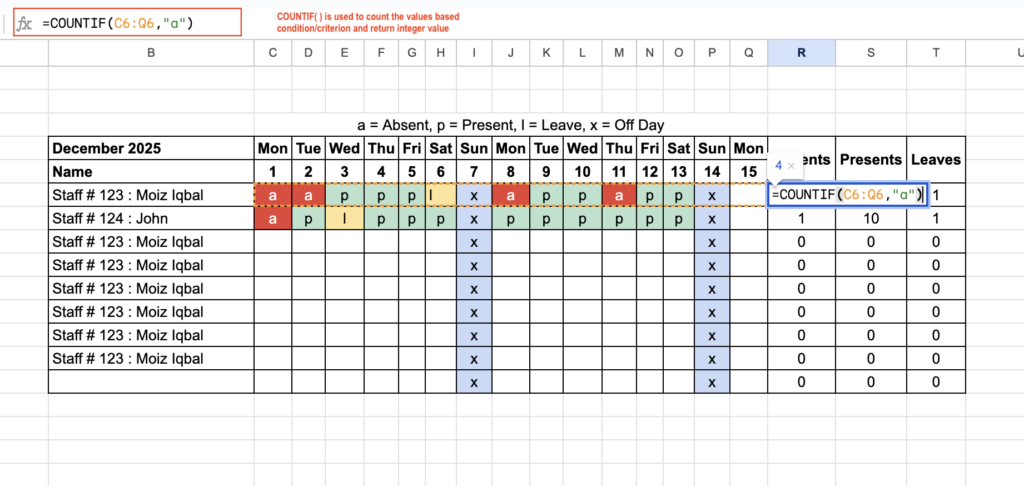
- Select a range of dates of an employee.
- Present days present days COUNTIF(range,P)
- COUNTIF(range,”A”) when there are no absences.
- Copy down formulae to all employees.
The approach makes your sheet a rudimentary attendance tracking system.
Step 5: Apply Conditional Formatting for Better Visibility
The attendance status is becoming clear through conditional formatting.
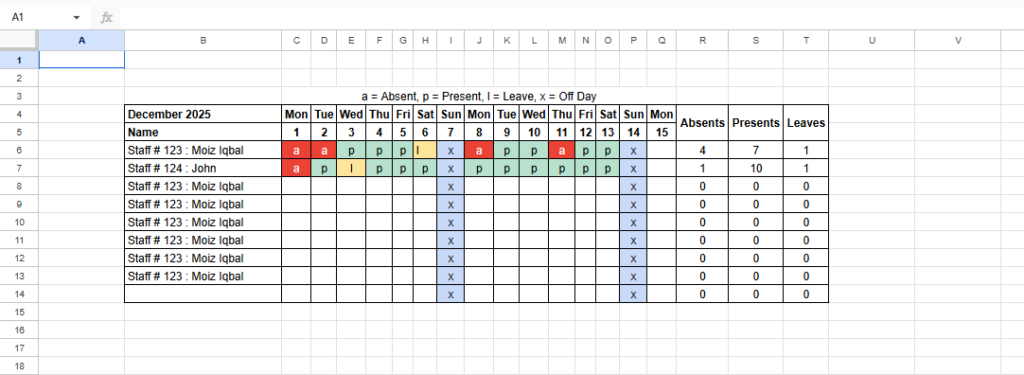
Suggested formatting:
- Present (P) → Green
- Absent (A) → Red
- Leave (L) → Yellow
- Off Day (X) → Gray
How to apply:
- Select attendance cells
- Click on Format→Conditional Formatting.
- Choose “Text is exactly”
- Assign colors
This enhances precision and also simplifies the process of checking your attendance keeper.
Step 6: Finalize and Customize the Attendance Sheet
In order to fill in your attendance sheet:
- Align text properly
- Change row height and column width.
- Add borders where needed
- Copy format of all rows.
You can also improve on it by including:
- Monthly attendance summary
- Total working days
- Attendance percentage
- Simple attendance reports
This system is a free attendance tracker of the basic needs.
Who Should Use This Attendance Sheet?
This is the best attendance solution in Google Sheets because it is designed to work with:
- Small businesses
- Offices with limited staff
- Schools and institutes
- Temporary projects
Teams that are unprepared to use paid attendance programs.
It would be perfect when you now have a monthly attendance sheet, excel free download and require a more efficient cloud-based solution.
Google Sheets Attendance vs Attendance Management Software
Even though Google Sheets is effective in small teams, it is limited.
Cons of Manual Attendance Tracking.
- None of the biometric tracking is done in real-time.
- Manual data entry required
- Limited automation
- Not scalable for large teams
In the course of growth of your business, it is required to switch to a staff attendance software or an online attendance tracker.
When Should You Use Attendance Tracking Software?
Attendance management software should be considered by you in the case you require:
- Attendance records which are automated.
- Payroll and time tracking integration.
- Shift scheduling
- Overtime and break tracking
Contemporary attendance software eliminates mistakes and time wastage by the administration.
Conclusion
One of the practical and affordable methods of handling attendance does not need the investment in the software, and it can be created in Google Sheets as a tailor-made attendance sheet. Simple formulas, formatting and organization will help you create a sound staff attendance tracker in a few minutes.
Nevertheless, when your team grows, moving away from a manual-tracking system to an attendance control software will guarantee precision and efficiency in the long-term.
This attendance sheet can be offered in a downloadable version so that it can be installed quickly and customized.
👉 Check out the latest modern employee attendance tracking software, which is automation-friendly and scalable and compliant.
Frequently Asked Questions
In order to design an attendance sheet in excel, the names of the employees should be entered in rows and dates in columns followed by the attendance being marked with codes such as P, A or L. COUNTIF formulas can be used to sum totals and conditional formatting should be used to make the data more visible.
Well, Google Sheets is a cloud-based alternative of a monthly attendance sheet on the free download of Excel. It also provides real-time availability, convenient sharing, automatic saving and improved collaboration without any software installations.
Google sheets is an appropriate tool to track the attendance of small teams and offices with basic employees. It is easy to enter data manually, perform automatic computations, and easy to provide reports, but might not have sophisticated automation capabilities.
The time tracking in attendance tracking software is automated, and the payroll can be integrated, and reporting is also automated, whereas the manual sheets need to have data entered into them. Growing teams should be done with software, whereas small businesses should use sheets.
A company must change when the number of employees grows, the payroll mistakes start to increase, or the manual monitoring is time-consuming. Attendance management software enhances operational efficiency, compliance and accuracy.