

This guide explains how to manage and verify employee location inside the attendezz system. By following the steps below, companies can set up coordinates, enable location settings, and view an employee’s location whenever they mark their attendance.
Getting Started with Location Setup
Follow the steps below to set up and manage employee location in your attendezz system. Each step will guide you through the exact options and sections you need to use inside the app.
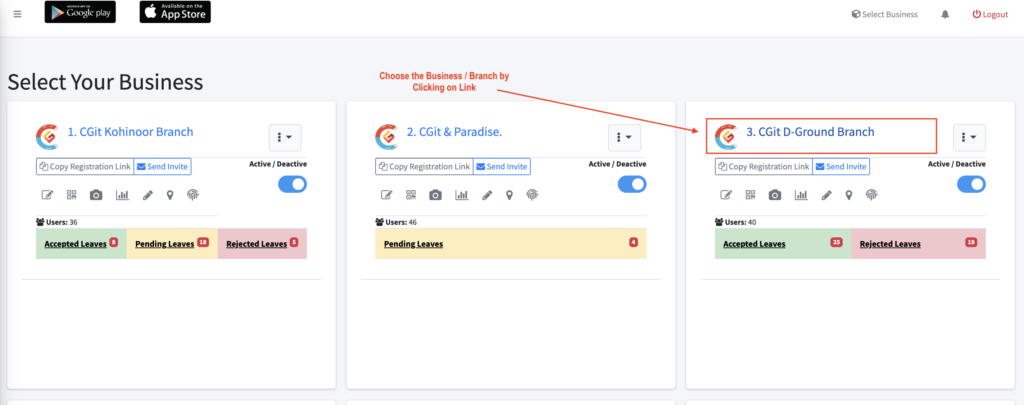
Step 1: Select Your Business or Branch
To begin, go to your dashboard and find the link for the business or branch you want to manage. Click on this link to open the specific business or branch settings. Once selected, you will be directed to a detailed view where you can manage all attendance and location-related settings. Refer to the screenshot below to locate the link on your dashboard.
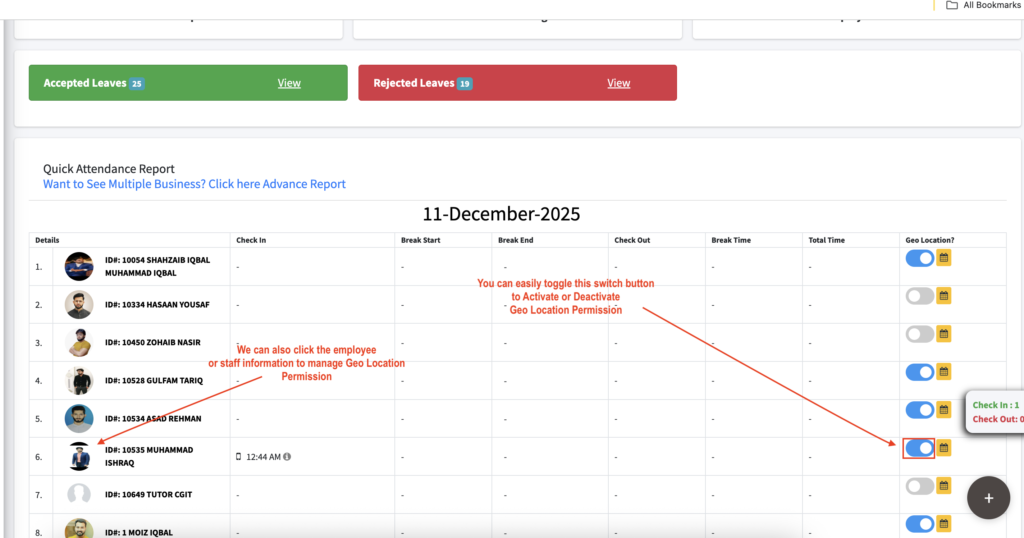
Step 2: Manage Employee Geo Location Permission
After opening the business or branch, you will see an option to manage employee information. Click on any employee or staff profile to access their Geo Location Permission settings. Here, you can easily toggle the switch button to activate or deactivate location tracking for that employee, ensuring accurate recording of attendance coordinates. Refer to the screenshot below to locate the employee information section and the toggle button.
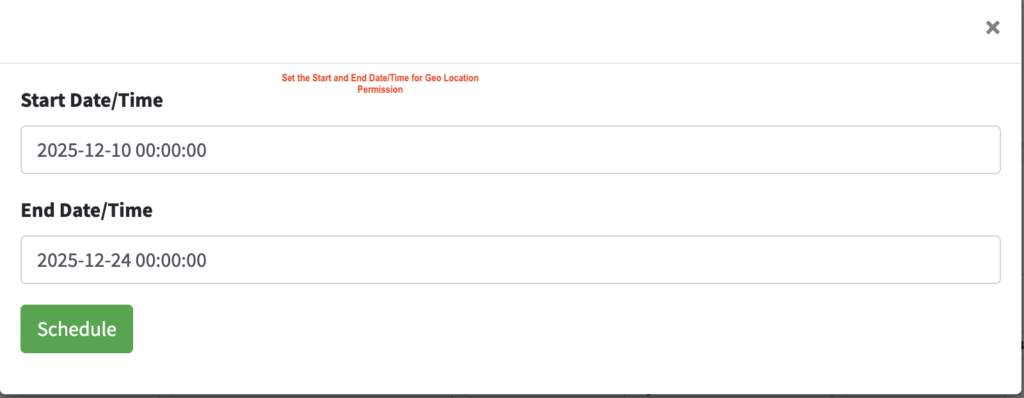
Step 3: Set the Start and End Date/Time for Geo Location Permission
Once the Geo Location Permission is activated for an employee, you can define the start and end date/time for the permission. This allows the system to track the employee’s location only within the specified period. Enter the desired dates and times in the provided fields to ensure accurate and time-bound location tracking.
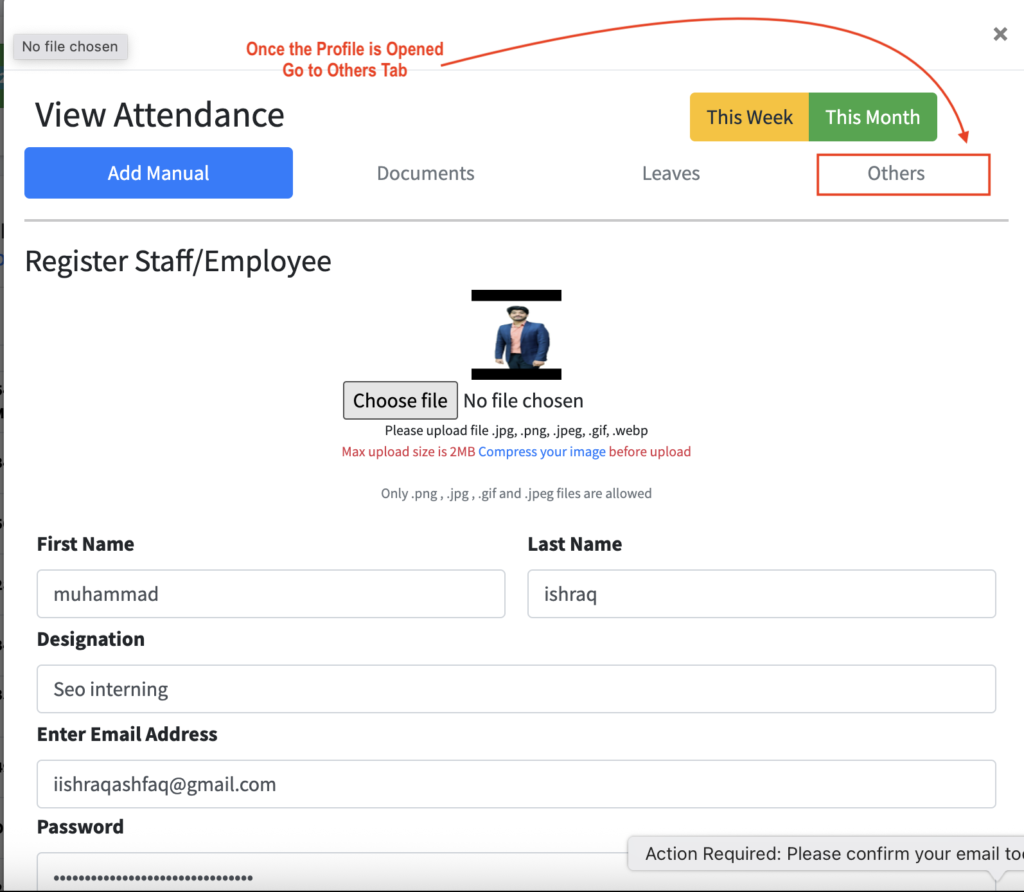
Step 4: Access the Others Tab in Employee Profile
Once the employee profile is opened, navigate to the Others tab. This section contains additional settings related to attendance and location tracking. Here, you can review or adjust options that are not available in the main profile view, including detailed Geo Location settings.
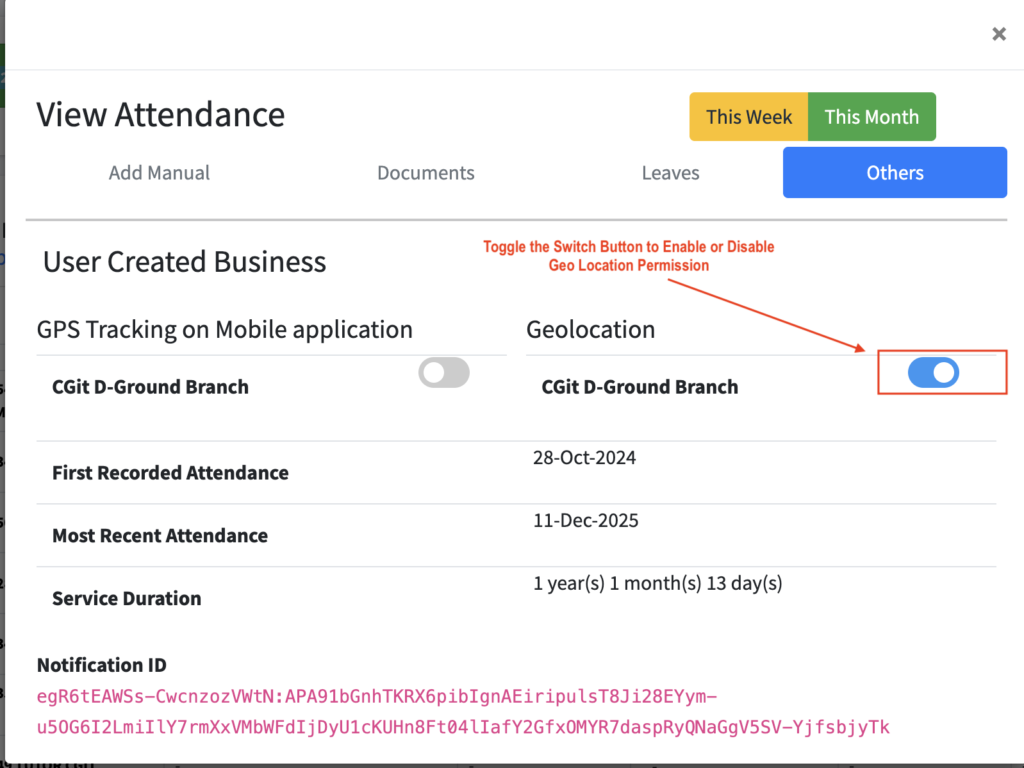
Step 5: Enable or Disable Geo Location Permission
In the Others tab of the employee profile, locate the Geo Location Permission option. You can toggle the switch button to enable or disable location tracking for the employee. This gives you full control over when and how an employee’s location is recorded during attendance.
Attendance Marked Outside Your Business/Branch Location
If an employee tries to mark attendance from a location other than their assigned business or branch, the system will notify the company on Discord. Simultaneously, the employee will receive a mobile alert stating that their attendance has been denied. You can also track the employee’s attendance within the authorized area to ensure accurate and secure records. This ensures that attendance is recorded only within the designated location.
Conclusion
By following this guide, companies can easily manage and track employee locations in the attendance system. Enabling Geo Location Permission, setting start and end times, and monitoring attendance ensures accurate and secure record-keeping. With real-time notifications for out-of-location attempts, the system helps maintain integrity and transparency in employee attendance.
Frequently Asked Questions
Go to the employee’s profile under the Others tab and toggle the Geo Location Permission switch to activate or deactivate it.
Yes, you can define the start and end date/time for each employee’s Geo Location Permission to track attendance only within the specified period.
The system will notify the company on Discord, and the employee will receive a mobile alert stating that attendance has been denied.
Yes, each employee’s Geo Location Permission must be activated in their profile, giving you control over who is tracked.
Once enabled, the system records the exact latitude and longitude during attendance, which you can view in the attendance report or employee details.